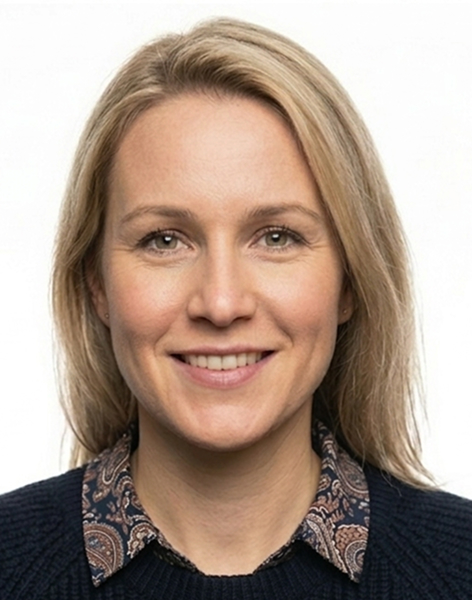

Can I Use a Smartphone for an Australian Passport Photo?
Yes — any modern smartphone camera (from 2019 onwards) has sufficient resolution for a DFAT-compliant photo. The key is technique, not camera quality.
Step 1: Choose the Right Background
You need a plain white or very light grey background.
- Use a white wall or blank white paper/sheet
- Stand 1 metre from the wall to avoid shadows
- Avoid cream, yellow, or off-white surfaces — they may look white in person but show colour in photos
Don't worry if your background isn't perfect — our tool removes and replaces backgrounds automatically.
Step 2: Set Up Lighting
Lighting is the biggest variable with smartphone photos:
- Best: Natural light from a window facing you
- Good: Two soft indoor lamps placed to either side
- Avoid: Overhead lights (cause shadows under eyes and chin)
- Avoid: Flash (causes red-eye and harsh shadows)
- Avoid: Backlight from a window behind you
Check that there are no shadows on your face before taking the photo.
Step 3: Camera Position and Settings
- Use the rear camera, not the front (selfie) camera — front cameras have wider lenses that distort faces
- Camera at eye level — use a tripod, stack of books, or ask someone to take the photo
- Stand 1.5–2 metres away from the camera
- Horizontal distance from wall — 1 metre minimum
- Turn off HDR and portrait mode — both can distort or blur backgrounds
- Use grid lines to keep your head centred
Step 4: Framing and Expression
- Head centred and filling 70–80% of the photo height
- Eyes level and looking directly at the lens
- Neutral expression, mouth gently closed
- No glasses
- No hat or head covering (unless religious/medical)
- Shoulders squared to camera
Step 5: Upload and Check
After taking the photo:
1. Upload to our Australian passport photo checker 2. Review compliance results 3. Our AI will crop, resize, and adjust the background 4. Download the compliant 45×35 mm file
Ready to create your passport photo?
Get a compliant passport photo in minutes. AI-verified. 100% acceptance guarantee or your money back.
Why Choose PassportApp?
Ready in 2 Minutes
AI processing delivers your compliant photo instantly — no booth queues.
Money Back Guarantee
Full refund if your application is rejected due to the photo.
Compliance Verified
Every photo is checked against official requirements before download.
Frequently Asked Questions
Yes — any modern smartphone with a rear camera works well. Use good lighting and a plain white background.
Use the rear camera. Front cameras have wider lenses that distort faces and are harder to hold at eye level.
A selfie taken with a rear camera at eye level using a tripod can work. Self-held selfies with a front camera often fail.
Most modern phones exceed the minimum. The output file needs to be at least 300 DPI at 45×35 mm, which is roughly 532×413 pixels.
Related Tools
Need help with your passport photo?
Use our free tools to check if your photo meets Australia requirements, find photo booths near you, or set up renewal reminders.